You upload a logo and it comes out blurry on a high-resolution screen. You save an image and the transparent background turns white. You set up a site icon and it looks pixelated in the browser tab. None of these are random failures. Each one traces back to a single decision: choosing the wrong file format. SVG, PNG, and ICO each exist because a specific visual problem needed a dedicated solution, and understanding what that problem is makes choosing between them almost automatic.
Format at a Glance
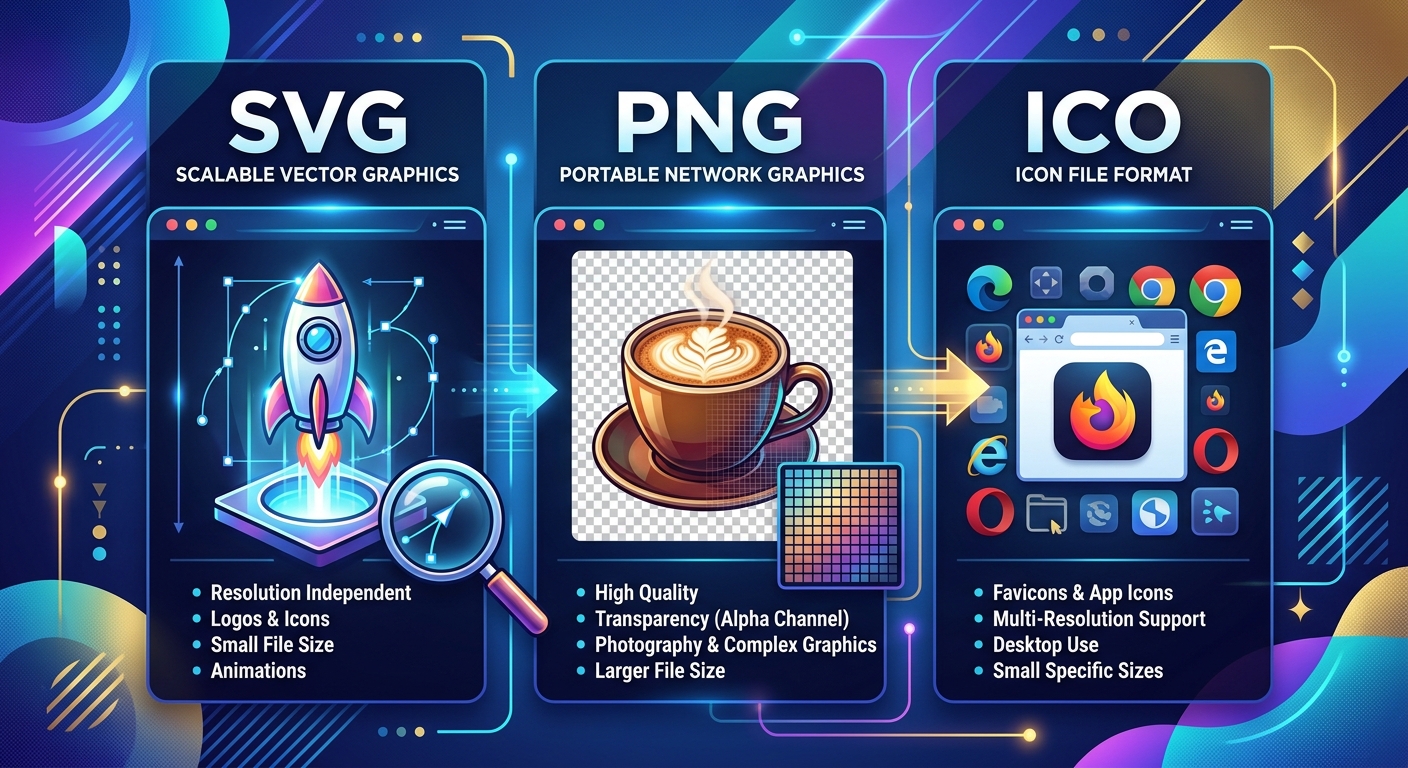
SVG stores images as mathematical shapes, so they scale to any size without ever going blurry. PNG stores individual pixel data with full transparency support, making it the go-to for photos and graphics that need clean, see-through backgrounds. ICO bundles multiple pixel-sized images into one file built specifically for browser tab icons. Each format solves a different problem, and picking the right one from the start saves a surprising amount of rework.
How Each Format Actually Stores an Image
The three formats work from completely different foundations. SVG describes an image using code. PNG records the color of every pixel. ICO packages pre-drawn pixel images at different sizes inside a single container. Those three approaches lead to very different results depending on what you need the image to do.
SVG stands for Scalable Vector Graphics. It is an XML-based format maintained by the W3C, and the SVG 2 specification defines it as a language for describing two-dimensional graphics using geometric shapes, paths, and text. Because the file describes shapes as instructions rather than pixels, the browser recalculates the drawing at whatever size the image is displayed. A logo saved as SVG looks equally sharp at 24 pixels or 2400 pixels.
PNG stores actual pixel data. Every position in the image has a recorded color value. That makes PNG excellent at representing photographs and complex artwork, but it also means the image has a fixed resolution. Stretch a PNG beyond its original size and the browser has to guess what the new pixels should look like, which causes the familiar soft blur. The PNG format specification includes a full alpha channel, meaning each pixel can carry its own transparency level rather than just being fully opaque or fully invisible.
ICO is a container format originally developed for Windows software icons. It does not have its own drawing system. Instead, it holds one or more pixel images at standard sizes, typically 16x16, 32x32, and 48x48, inside a structured wrapper. The browser or operating system reads the container and picks whichever size fits the current display context best.
SVG and the Problem of Scaling Without Quality Loss
SVG was built to solve one persistent frustration: images that look perfect at one size and break at another. A logo needs to appear in a site header, a mobile navigation bar, a printed business card, and a 4K monitor wallpaper. Creating separate files for each size is tedious and error-prone. SVG handles all of those from a single file because the rendering engine calculates the shapes fresh every time.
Beyond resolution independence, SVG files are usually compact for simple graphics. A logo with clean shapes and text can come in under 5 kilobytes. The same graphic rendered as a high-resolution PNG for retina displays might weigh ten times more. SVG also integrates directly into HTML, so you can control colors, sizes, and animations entirely through CSS without touching the image file.
SVG does have real limits. Here is where it falls short:
- Photographs cannot be stored efficiently as vector shapes. A photo has millions of color variations that cannot be described cleanly with paths and curves. SVG can embed a raster image internally, but that defeats the point of using the format.
- Extremely detailed illustrations with thousands of individual paths can produce large SVG files that take longer to parse than a well-compressed PNG would render.
- Some legacy software and older email clients have poor or nonexistent SVG support, which matters for images that travel outside the browser.
PNG and the Need for Transparent, Pixel-Perfect Images
PNG became the web standard for transparent graphics because it handles alpha transparency without losing any image quality. Older formats like GIF offered only binary transparency, where a pixel was either fully visible or fully gone. PNG allows smooth gradients of opacity, which means drop shadows, soft edges, and feathered selections all blend naturally into whatever background they sit on.
The format uses lossless compression, meaning the compression process makes the file smaller without discarding any pixel data. The image that comes out is bit-for-bit identical to the one that went in. That fidelity is what makes PNG reliable for screenshots, interface mockups, and any graphic where precision matters more than file size.
PNG performs best in these situations:
- Product images on e-commerce pages that need to sit on colored or patterned backgrounds without a white rectangle around them.
- Diagrams, infographics, and text-heavy graphics where crisp edges and accurate colors matter more than small file size.
- Screenshots and interface documentation where the exact pixel appearance needs to be preserved for reference.
The main drawback of PNG is file size. Large photographs saved as PNG can run into tens of megabytes because the lossless compression cannot compress photographic detail as aggressively as formats that accept some quality loss. For photos where transparency is not needed, JPEG or WebP will produce a fraction of the file size at visually similar quality.
ICO and the Job of Representing a Site in a Browser Tab
The ICO format exists almost entirely to serve one role: the favicon. That small image in the browser tab, in the bookmarks bar, and on the home screen shortcut is what ICO was built to deliver. The format traces back to early versions of Internet Explorer and has been the standard approach for cross-browser favicon support ever since.
The key feature of ICO is its ability to hold multiple image sizes inside one file. A browser asking for a tab icon might need a 16x16 image. A user pinning the site to a taskbar might trigger a request for 32x32. Both get served from the same ICO file rather than requiring separate files for each context. That makes deployment simple and reduces the risk of missing size variants.
The challenge with ICO is that you cannot draw an image in ICO format the way you might sketch in PNG or SVG. ICO is an output format. You build the source image somewhere else, then convert it into ICO to produce the final deliverable file.
Why SVG Is the Best Source Image for a Favicon
A favicon needs to look clean at 16 pixels wide. At that size, detail disappears fast. Blurry source images produce blurry favicons regardless of which format they get converted into. Starting from a vector graphic eliminates the blurriness problem entirely because the conversion process rasterizes the image at exactly the right size from a mathematically perfect source.
Modern browsers have added native support for SVG favicons using a specific link element type. But for compatibility across older browsers, bookmark managers, and operating systems, ICO remains the reliable baseline. The approach that covers both looks like this:
- Design the icon as a clean SVG, keeping shapes simple and readable at tiny sizes.
- Preview the design scaled down to 16x16 and 32x32 to identify any details that become unreadable.
- Simplify the artwork if needed until it reads clearly as a thumbnail.
- Convert the finished SVG into an ICO file that contains multiple size variants for broad compatibility.
- Add both the ICO file and an SVG favicon reference to the HTML head so modern and older browsers each get the best version.
For that fourth step, a browser-based SVG to favicon converter handles the size generation and packaging without requiring design software or command-line tools.
Applying the Right Format to Real Work
A company logo used across a website, marketing materials, and app store listings should be SVG. It scales, it stays sharp, and the file is easy to reuse in different contexts without creating multiple exports at different resolutions.
A product photograph on a white-background e-commerce site that needs to have its background removed should be PNG. The image has photographic complexity that SVG cannot represent, and the alpha channel handles the transparency cleanly across all browser backgrounds.
A browser tab icon should be delivered as ICO, but the creative work should start from SVG. The two formats are complementary, not competing. SVG provides the perfect source and ICO provides the cross-browser deliverable.
Photographs that do not need transparent backgrounds, and where file size matters, are better served by JPEG or WebP than PNG. PNG shines for transparency and precision, not for compressing photographic content.
Three Formats, Each Doing Its Job Right
SVG, PNG, and ICO were not designed to compete with each other. They each fill a gap that the others leave open. SVG handles resolution independence for graphics built from clean shapes. PNG handles transparency and pixel fidelity for detailed or photographic content. ICO handles multi-size packaging for browser and system icons.
Knowing which gap you are filling makes the format decision straightforward. Does the image need to scale without losing quality? SVG. Does it need a transparent background with photographic or detailed content? PNG. Does it need to function as a favicon across browsers and platforms? ICO, built from an SVG source. The format that fits the job will always outperform the one that does not, and the difference shows up every time someone loads your page.
To switch between these formats, render an SVG as PNG, build an ICO favicon from a PNG or open the ICO converter. The underlying choice is explained in raster vs. vector artwork.