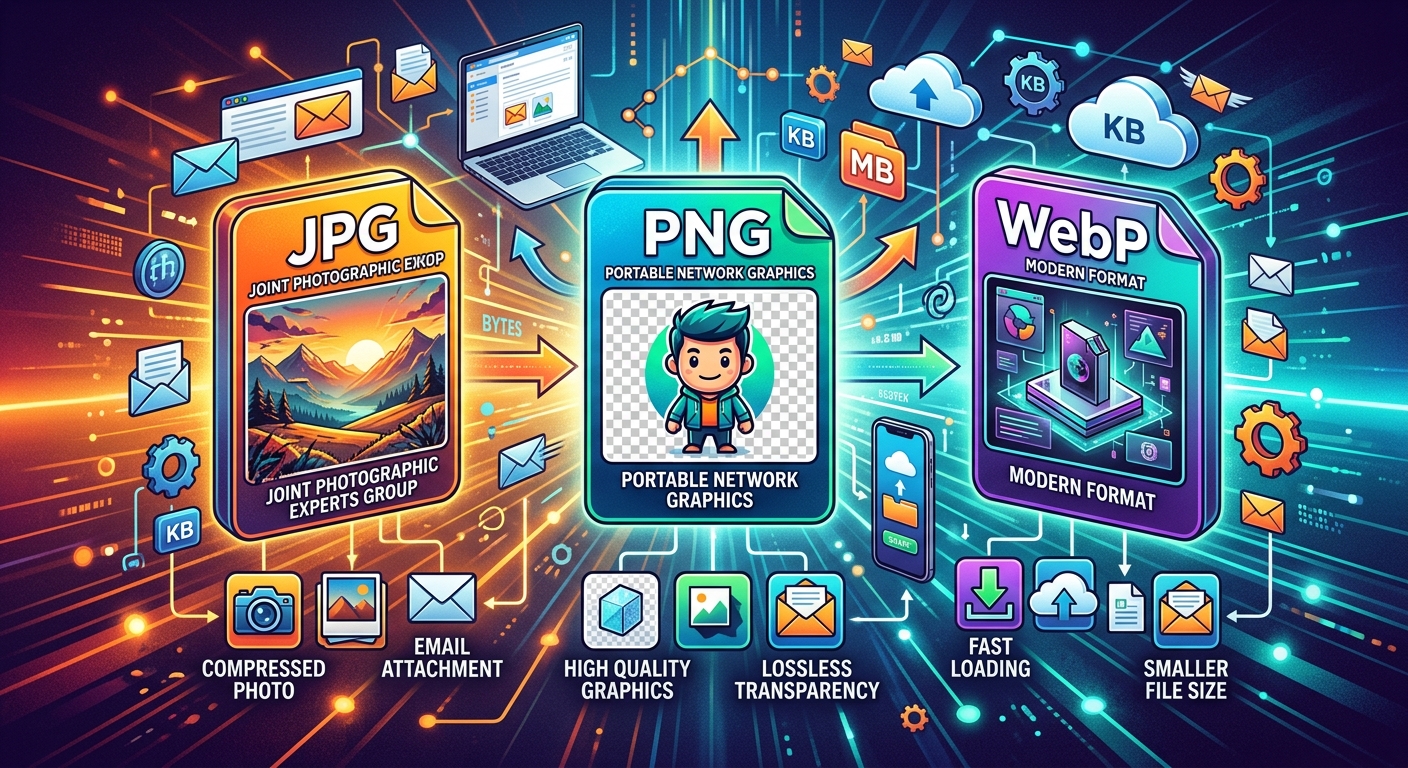
Your email is ready, but the photos are too large to attach. You shrink them, send them, and hear back that one looks blurry. Another recipient cannot open the format you chose. These small frustrations often start with a file format decision. JPG, PNG, and WebP each suit different kinds of images. Choosing between them gets easier once you know what the recipient needs and which details your image must preserve.
Your Sharing Starting Point: Choose JPG for everyday photos when broad compatibility and manageable attachments matter. Choose PNG for screenshots, sharp text, and images that need transparent backgrounds. Choose WebP when smaller files matter and the receiving app accepts it. Keep your original before converting. The right choice depends on what is inside the image, how it will be viewed, and whether the recipient needs to edit it or simply open it.
Start With the Image and Its Destination
File formats handle image information differently. A photograph contains gradual changes in light, color, and texture. A screenshot may contain tiny letters, straight lines, and large areas of one color. A logo might need an empty background so it can sit cleanly over a slide or document.
Those differences affect which format works best. A format that keeps a holiday photo compact may leave small text looking fuzzy. A format that preserves every pixel in a screenshot may produce an unnecessarily large photo attachment.
The destination matters just as much. Sending a picture to a relative is different from uploading an image to a form with strict file requirements. Before converting anything, check whether the recipient or upload page requests a particular format. That requirement can settle the decision immediately.
JPG Keeps Everyday Photo Attachments Manageable
JPG, also called JPEG, is a useful default for ordinary photographs. It uses lossy compression, which reduces file size by discarding some image information. At a sensible quality setting, the result can still look good for viewing on a phone, laptop, or shared document.
Think of sending pictures from a birthday party. The recipient probably wants to see faces, decorations, and the cake. They may not need the full original files from your camera. JPG gives you room to reduce attachment size while keeping enough detail for that purpose.
The tradeoff becomes clearer when compression is pushed too far. Fine textures can look smeared. Edges may develop visible blocks or faint noise. These problems can become noticeable around hair, foliage, and lettering inside a photograph.
JPG also has broad compatibility across everyday software. It is a dependable choice when you do not know which device or application the recipient uses. The extensions .jpg and .jpeg refer to the same image format, though an upload form may specify one extension.
JPG does not support transparency. Every part of the image needs a visible background. That is rarely a problem for a normal camera photo, but it matters for cutout product images, signatures, and logos.
PNG Preserves Screenshot Text and Transparent Backgrounds
PNG uses lossless compression. It can reduce file size without throwing away image information. This makes it a strong choice for screenshots containing menus, spreadsheet cells, diagrams, or small text that someone needs to read.
Imagine sending a screenshot of an error message to a coworker. The exact wording matters more than a modest reduction in attachment size. PNG preserves the screenshot's pixels without adding the compression artifacts that a heavily compressed JPG can introduce.
PNG also supports transparency, including partially transparent edges. A logo can sit over a colored presentation slide without a white rectangle around it. A cutout image can retain smooth edges when placed against a different background.
The drawback is size, particularly with photographs. A detailed photo saved as PNG can be much larger than a JPG made for everyday viewing. The larger file does not automatically look better to the recipient. It may simply preserve information they do not need for that task.
PNG cannot restore detail that was already lost. Saving a blurry JPG as PNG preserves the blurry version. It does not recover the original camera detail or remove earlier compression damage.
WebP Offers Smaller Files When the Receiving Software Supports It
WebP supports both lossy and lossless compression, as well as transparency. It can be useful when you want a compact photograph or a smaller graphic with a transparent background. Results depend on the image and the settings used during export.
For everyday sharing, the main question is compatibility. Modern browsers commonly display WebP images. Other software can vary. A recipient may be able to view the image in a browser but struggle to insert it into an older application or upload it to a site that accepts only JPG and PNG.
Consider sending a product image to a freelancer who works in a browser-based editor. WebP may fit that workflow if the editor accepts it. Sending the same image to an unfamiliar office system calls for checking its requirements first.
WebP is worth considering when both sides already know it works. If the recipient specifically asks for JPG, use JPG. A smaller attachment offers little benefit if it creates an extra conversion task for the person receiving it.
Convert a Photo to JPG Without Losing Track of the Original
A recipient might request JPG because their upload form or editing software requires it. Start by keeping a copy of your original image. Open that copy in a JPG converter, select the output settings available, and save the converted file with a clear name.
Check transparency before conversion. JPG cannot retain transparent areas, so those areas must become a solid background. Depending on the tool and its settings, the result may use white, black, or another background color. Choose the background deliberately when the tool allows it, then inspect the finished image.
Conversion to JPG can also introduce quality loss because JPG uses lossy compression. Look closely at faces, fine textures, and any text in the image. If adjustable quality settings are available, use a higher setting when detail matters. Use stronger compression only when the smaller file remains suitable for its purpose.
Avoid repeatedly opening and saving the same JPG during editing. Repeated lossy saves can cause additional damage. Make edits from your original or a lossless working copy, then export the sharing version once you are finished.
Match the Format to Familiar Sharing Tasks
You do not need a technical checklist for every attachment. These common situations provide a useful starting point:
- Emailing family photos: Use JPG for broad compatibility and manageable size. Reduce image dimensions if the recipient only needs screen viewing.
- Sharing a screenshot for help: Use PNG when small text, buttons, or error messages need to stay clear.
- Sending a transparent logo: Use PNG unless the recipient confirms that WebP fits their workflow.
- Sharing through software that accepts WebP: Consider WebP when a smaller file would help, and inspect the exported result.
- Uploading to a form with stated requirements: Follow its accepted formats, file size limit, and image dimension rules.
These choices are starting points, not promises about file size. A simple screenshot may compress efficiently as PNG. A screenshot filled with photographic content may be larger. Testing a copy lets you compare the actual results.
Reduce Attachment Size Without Making Everything Blurry
Format is only one part of file size. Image dimensions also matter. A photo that is thousands of pixels wide may contain far more detail than someone needs to view it in an email. Resizing it can reduce the file substantially before you apply stronger compression.
Keep the intended use in mind. A casual photo for a message can often be smaller. An image intended for printing, cropping, or design work may need more pixels. Ask what the recipient plans to do with it if that is unclear.
For screenshots, crop away irrelevant areas first. Removing unused desktop space makes the file more focused and may reduce its size. Be careful with resizing, though. Shrinking a screenshot can make already small text difficult to read, even when you keep it as PNG.
Attachment limits vary between email services. Check the combined size of all files, since several manageable images can still exceed the available allowance. If the recipient needs the originals, sharing a folder through an agreed file-sharing service may suit the task better than compressing every image heavily.
Check the File the Recipient Will Actually Receive
Open the exported image before attaching it. Check that it has the expected background, readable text, and enough detail. Compare it with the original at a useful viewing size. For screenshots, inspect small lettering closely.
Use a descriptive filename that distinguishes the sharing copy from the original. A name such as project-photo-email.jpg is easier to identify than several files with nearly identical camera names.
Changing a filename extension does not convert an image. Renaming photo.webp to photo.jpg leaves the underlying file unchanged and can confuse receiving software. Use an actual export or conversion process.
For sensitive images, consider where conversion happens. Check whether an online tool uploads the file and how it handles stored copies. A built-in image editor may be a suitable option when a picture contains private documents or information you do not want to upload.
Send a File That Fits the Recipient’s Next Step
The best choice makes the image easy to use. JPG suits most everyday photo attachments. PNG protects screenshot clarity and transparent backgrounds. WebP can reduce size when the receiving software supports it.
Keep the original, create a sharing copy, and inspect that copy before sending. A few moments spent checking readability, background, and file size can prevent another email asking for a different version.
For the background on this topic, read which web image format fits your picture.