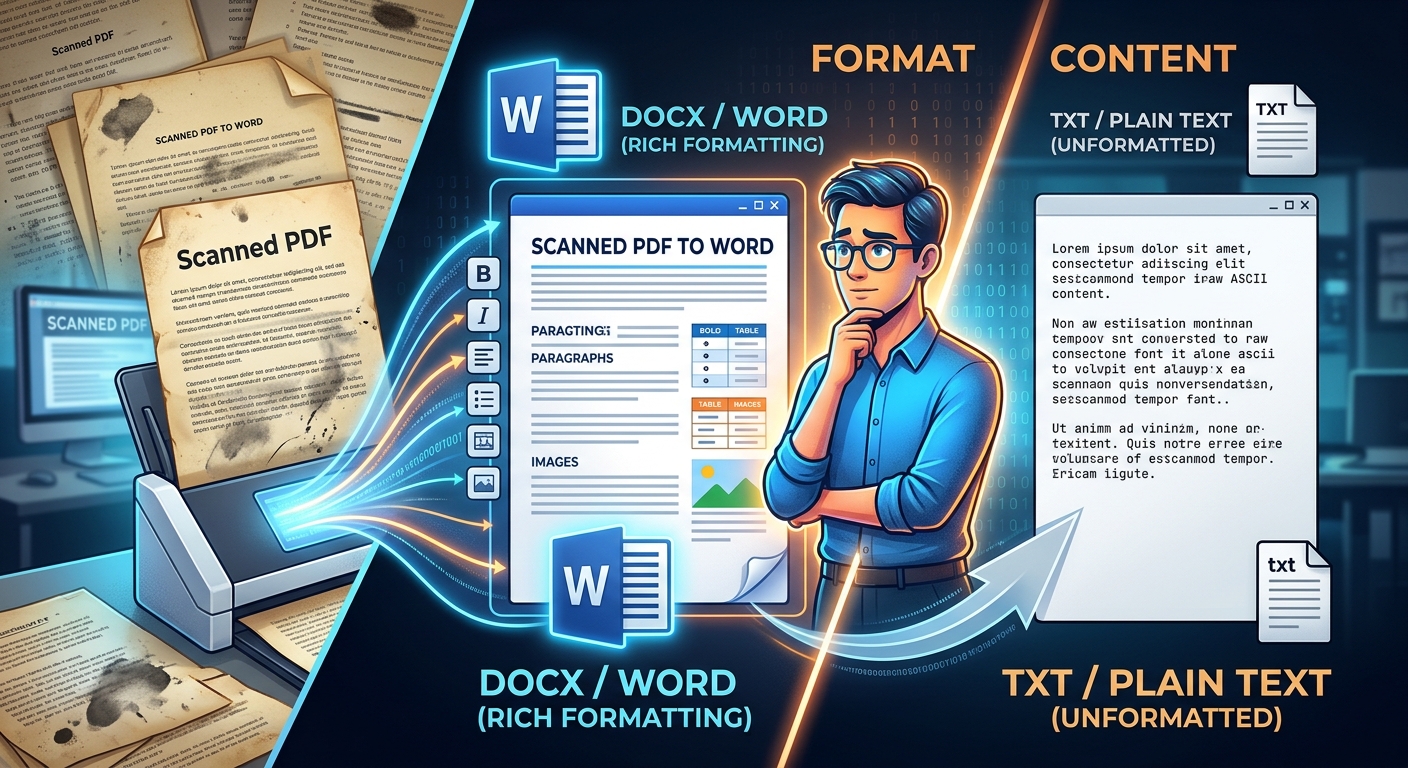
You open a scanned PDF, click a sentence, and try to fix a typo. Nothing happens. The words look perfectly readable, but your computer may see only a picture of the page. Before you can edit those words, you need to turn that picture into text. After that, the choice between Word and plain text depends on what you want to keep: the document’s appearance, its wording, or a useful mix of both.
Your Format Decision in Three Points
- Scanned pages need text recognition before their words become editable.
- Choose Word when document structure and formatting matter.
- Choose plain text when you mainly need clean, reusable wording.
Why a Scanned Page Needs Text Recognition
A scanner captures the appearance of a page. That image can show paragraphs, signatures, tables, and handwritten notes. However, the image itself does not tell an editing program which marks are letters or where one word ends.
This differs from a PDF created directly from a document editor. That file may already contain selectable text. A scanned PDF may contain only page images, although some scanned files also have a recognized text layer added during scanning or later processing.
Try selecting a few words and copying them into a text editor. If individual words cannot be selected, the file may need optical character recognition, usually called OCR. If copied text appears scrambled, the existing recognition may need correction or another attempt.
OCR analyzes the marks in an image and attempts to identify letters, numbers, and punctuation. Some tools also try to recognize paragraphs, columns, and tables. The resulting text can then be saved in an editable format.
Recognition is an interpretation of the scan. A faint decimal point may disappear. A lowercase letter may become a number. Choosing Word instead of plain text will not automatically prevent those mistakes. The scan quality and recognition process affect both outputs.
Word Gives You More Control Over the Finished Document
Word is usually the better destination when the result needs to remain a document. Think of a report you must revise, a letter you need to update, or a worksheet you want to print again. A Word file, commonly saved as DOCX, supports headings, fonts, tables, images, and page settings.
A conversion tool may attempt to rebuild the scanned page using those features. It might turn a visible heading into a larger font, place information into a table, or retain an illustration beside the text. The amount preserved depends on the tool and the original page.
That convenience has limits. A page that looks tidy after conversion may contain many separate text boxes. Paragraphs may end with manual line breaks. Columns may read in the wrong order. These problems can make editing awkward even when the initial appearance seems close to the scan.
For a simple letter, the cleanup may be small. For a brochure with sidebars and several columns, rebuilding parts of the document may take longer. Treat layout preservation as a starting point, rather than a promise of an exact replica.
When Word Fits Your Next Task
- You need to revise a report while keeping headings and sections recognizable.
- You want to correct a document using spelling tools, comments, or tracked changes.
- You need editable tables, formatted paragraphs, or images beside the wording.
- You plan to print or share a document with a consistent visual structure.
Word also gives you room to make the recovered document easier to use. You can replace awkward spacing with paragraph settings, apply consistent heading styles, and rebuild a damaged table. These changes take effort, but they can produce a cleaner working file.
Plain Text Makes the Wording Easier to Reuse
Plain text keeps characters and basic breaks between lines. A TXT file does not store Word-style fonts, embedded pictures, page margins, or formatted table cells. This makes it a useful choice when appearance would only get in the way.
You might need a passage from a scanned article for research notes. Perhaps you want to paste meeting notes into an email or move an old instruction sheet into a website editor. Plain text gives you a simple base that you can format for its new destination.
It also exposes some recognition problems clearly. Broken words, repeated headers, and strange punctuation can be easier to spot when decorative formatting is gone. You can concentrate on what the text says.
However, removing formatting can remove meaning carried by the page layout. A price may become separated from its item. Two columns may run together. Footnotes may appear halfway through a paragraph. Plain text still needs checks for reading order and context.
Text encoding matters too. When an export offers UTF-8, it is generally a useful choice for retaining accented letters and other characters across applications. Open the saved file once to check that the characters display correctly.
Extract the Text Before Choosing Its Final Home
If your PDF contains only scanned images, start by getting usable text from it. You can try free OCR as an option for extracting the wording, then decide whether that content belongs in Word or a plain text file. Check the available input and output options before starting, since services differ.
Consider file sensitivity before uploading anything. A public handout has different privacy needs from a bank statement, client agreement, or staff record. Check whether you are allowed to share the document with an outside service, and review how that service handles uploaded files. For restricted material, use a method approved for that information.
Start with one representative page if possible. Choose a page with the features that could cause trouble, perhaps a table, small print, or two columns. Inspecting a sample can reveal whether the output will need light correction or substantial repair.
Proofread the recognized text against the scan before relying on it. Pay particular attention to names, dates, amounts, reference numbers, and missing lines. A sentence can read naturally while still containing an incorrect figure.
Compare What Each Format Actually Preserves
The useful question is what your next task requires. Word stores document formatting. Plain text gives you fewer formatting complications when moving words between applications. Neither format guarantees accurate recognition.
Word and Plain Text for Everyday Scan Tasks
| Your Priority | Word | Plain Text |
|---|---|---|
| Keeping the Page Structure | Can retain or rebuild headings, tables, and image placement. | Keeps wording and basic line breaks, without page formatting. |
| Correcting Recognized Text | Supports document review tools, though layout may complicate edits. | Provides a simple editing surface with fewer formatting distractions. |
| Reusing Passages Elsewhere | Useful when the destination also needs document formatting. | Useful for notes, emails, search, and website editors. |
| Handling Tables | Can store editable cells if conversion recognizes the structure. | Needs clear separators and careful checks to preserve relationships. |
| Matching the Original Scan | May approximate the layout, with manual adjustments needed. | Does not preserve the original visual design. |
Correct Recognition Errors Before Polishing the Layout
It is tempting to fix fonts and spacing as soon as a converted document opens. Check the wording first. Otherwise, you may spend time polishing a paragraph that later needs to be replaced.
Keep the original scan beside the editable output. Compare one section at a time, including headings and footnotes. Spelling tools can catch obvious errors, but they cannot reliably catch a valid word substituted for another valid word.
Watch for problems that affect both Word and plain text:
- Letters and numbers confused with each other, including O and 0 or l and 1.
- Missing punctuation, decimal points, currency symbols, or minus signs.
- Words split across lines or joined without spaces.
- Headers, footers, and page numbers inserted into sentences.
- Columns, table entries, or footnotes placed in the wrong reading order.
After correcting the text, handle the format-specific cleanup. In Word, repair paragraph breaks and check whether tables remain readable after editing. In plain text, remove unwanted line breaks and add clear separators where relationships would otherwise be lost.
Let the Next Use Decide the Format
A student extracting passages for study notes will often find plain text sufficient. The original page design adds little to that task. Keeping page references alongside the notes can still help with later checking.
An office worker updating an old procedure may prefer Word. Headings, numbered sections within the source document, and tables can help readers follow the revised version. The document may need fresh formatting after recognition.
A freelancer moving approved wording into a content editor may choose plain text to avoid carrying over unwanted fonts and spacing. If the same job also requires a formatted client copy, saving a Word version can serve that separate purpose.
You can keep both formats when each has a clear use. Save the corrected wording as text for reuse, then maintain a Word copy for presentation. Keep track of later edits so the two versions do not drift apart.
Keep the Page as Evidence and the Text as a Working Copy
Choose Word when you need to shape the recovered content into a readable, formatted document. Choose plain text when you need the wording to travel easily into notes, emails, or other editors.
Keep the original scanned PDF either way. It remains your reference for checking uncertain characters, missing content, and the relationships shown on the page. OCR makes editing possible. Careful proofreading makes the result dependable, and choosing the right format makes your next task easier.
For the background on this topic, read compressing a PDF without making it unreadable and what converts cleanly from PDF to Word.