You paste a logo onto a presentation slide and a white rectangle appears around it. You spend twenty minutes carefully editing a product photo, remove the background, hit save, and the white fills right back in. These are not editing mistakes. They are format mistakes. The file type you chose does not understand transparent pixels, so it filled every gap with white and called it done.
Your Export Format Is the Last Editor Your Image Ever Has
- PNG and WebP preserve transparent pixels fully; JPG replaces them with white automatically and permanently.
- Saving to the wrong format at the last step undoes every edit you made during the transparency work.
- File size, browser support, and whether the image is for print or screen all factor into the right format choice.
Why Some Formats Can Hold Transparency and Others Simply Cannot
Every digital image is built from pixels. Each pixel stores color data across red, green, and blue channels. Transparency requires a fourth channel, called the alpha channel. That channel stores how opaque or see-through each pixel is, ranging from completely solid to completely invisible.
Not every image format was designed to carry that fourth channel. JPG was built in the early 1990s with one job in mind: compress photographs into smaller files for storage and transmission. Photographs do not need transparent skies. The format was never given an alpha channel, and it never will be. The math behind JPG compression does not have a concept of "nothing here." Every pixel must be assigned a color value.
PNG and WebP were designed with the web in mind. Both include full alpha channel support as a deliberate feature. That architectural difference, baked in at the format level, shapes every practical decision you make about saving and exporting images.
PNG: The Reliable Standard for Graphics with Transparent Areas
PNG stands for Portable Network Graphics. It was developed in the mid-1990s as an open-format replacement for GIF, and the W3C's published PNG specification defines it as a lossless format with full 8-bit alpha channel support. That means each pixel can store any value between fully transparent and fully opaque, not a binary on-or-off switch.
This makes PNG the default choice for a wide range of everyday use cases:
- Logos and brand graphics with soft edges, drop shadows, or anti-aliased curves
- Icons that need to sit cleanly on any background color without a visible box around them
- Web graphics that will be placed on patterned or colored page backgrounds
- Images destined for slides, PDFs, or printed documents where compatibility matters
The one trade-off with PNG is file size. Lossless compression means the image data is stored exactly as captured. For photographs with millions of subtle color variations, that produces large files. For logos, icons, and flat graphics with fewer colors, PNG compression is efficient and file sizes stay reasonable.
WebP: A Newer Format That Matches PNG on Transparency and Beats It on Size
WebP is a format developed by Google and released in 2010. It supports both lossless and lossy compression modes, and it includes full alpha channel transparency in both modes.
The advantage over PNG is measurable. A WebP file with transparency is typically 25 to 35 percent smaller than an equivalent PNG at the same quality level. According to Google's WebP format documentation, lossless WebP images are on average 26 percent smaller than PNG files of the same image. For web pages that load dozens of graphics, that size difference accumulates into meaningful page-load gains.
Browser support for WebP is now broad. Chrome, Firefox, Safari, and Edge all handle it without issue. If an image is destined for a website, WebP is worth choosing over PNG as a first option, particularly for larger or more complex graphics. PNG remains the safer pick for applications like PowerPoint or legacy document workflows, where WebP compatibility is less consistent.
Why JPG Will Always Fill Transparent Pixels with White
JPG is not doing anything wrong. It is performing exactly as intended. The format uses a compression method called Discrete Cosine Transform, which works by approximating color values across blocks of pixels. That algorithm has no mechanism for storing emptiness. Every pixel block must contain color data.
When you export a transparent image as JPG, the software must assign a color to the transparent pixels before saving. White is the default fill in most applications. Some tools let you pick a different color, but you cannot preserve the transparency itself. The moment you commit to JPG, the alpha channel data ceases to exist in that file.
This catches people off guard most often in three situations: saving logos from design software, downloading a finished result from a background-editing tool, and re-exporting screenshots that were originally captured as PNG. In all three cases, the transparency was there right up until the format was chosen. The format choice, not the editing, was the mistake.
When the Export Step Is Just as Important as the Editing Step
The editing and the exporting are a two-part process, and both parts have to match.
Consider a product photo for an online store. You want the product on a clean, isolated background so the design team can drop it onto any page layout. If you use a tool to remove background from the image and then save it as JPG, the transparent area becomes white. On a white page that looks acceptable. But when the design team places it on a dark promotional banner, a white rectangle appears around the product. The edit worked perfectly. The export undid it.
Presentations are another common scenario. Slide backgrounds are rarely solid white anymore. Gradients, colors, and photo backgrounds are common. A logo saved as JPG will display a white box on any non-white slide. The same logo saved as PNG sits invisibly on whatever background the designer chooses. The image is identical. The format decides the outcome.
The rule to internalize is straightforward: if the transparency matters at the destination, the format must carry it there. PNG and WebP carry it. JPG does not.
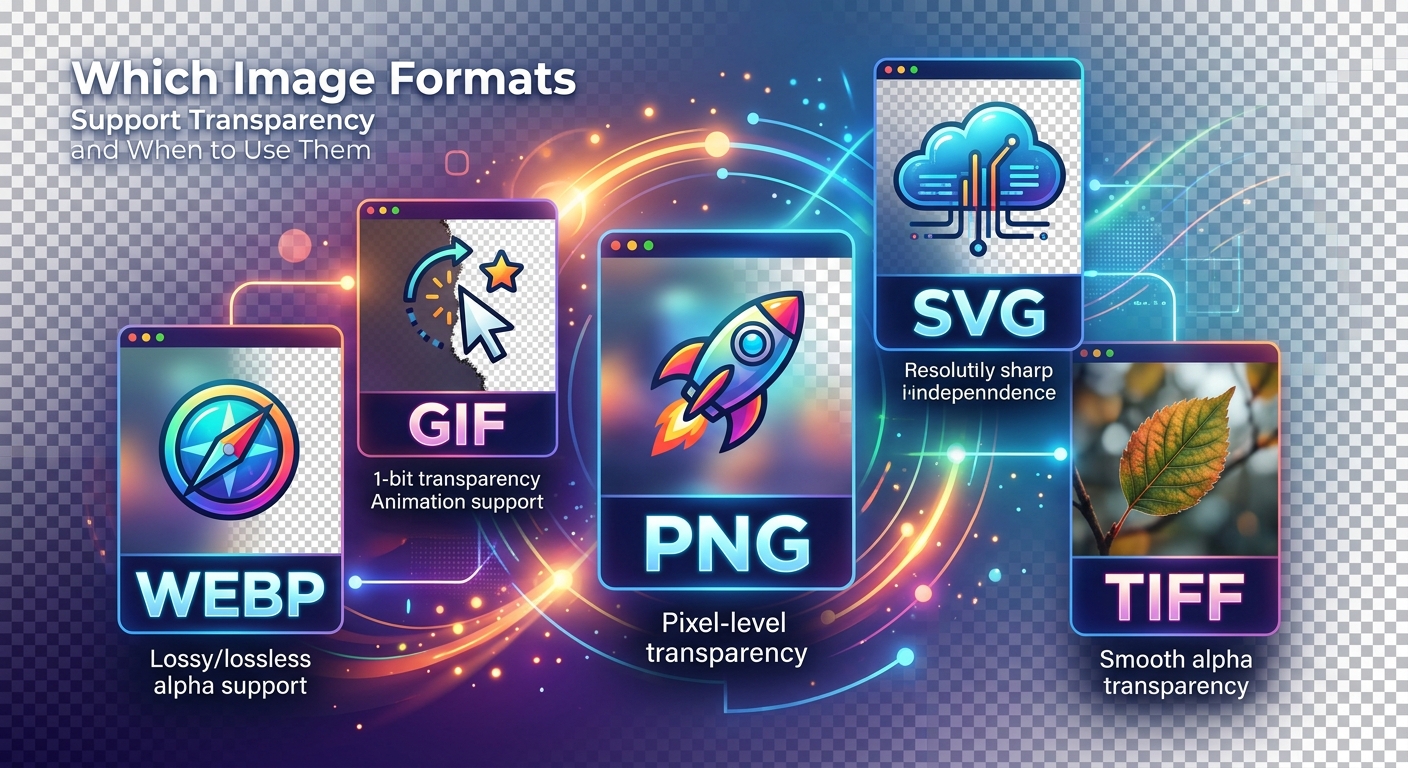
GIF, TIFF, and SVG: Other Formats and How They Handle the Alpha Channel
These three formats come up often enough to be worth understanding, even if they are not daily drivers.
GIF does support a form of transparency, but it is binary. Each pixel is either fully transparent or fully opaque, with no gradation in between. Soft edges, blurred shadows, and smoothly anti-aliased text all turn jagged on GIF images because the partial transparency values cannot be stored. GIF transparency functions for simple pixel-art style graphics but fails with anything photographic or smooth.
TIFF supports full alpha channel transparency and is a staple of professional print and archiving workflows. It is not practical for web use because file sizes are large and browser support is limited, but it is an excellent choice when delivering assets to a print shop or archiving high-quality masters of images that will be reused in different contexts.
SVG defines images using mathematical shapes and paths rather than pixels. Transparency is handled natively through its XML and CSS structure. Because SVG scales to any size without any quality loss, it is the preferred format for logos and icons that will appear at different sizes across a website, print document, or application interface.
Format Transparency Support Compared by Use Case
| Format | Transparency Type | Compression | Best Suited For |
|---|---|---|---|
| PNG | Full alpha channel (8-bit) | Lossless | Logos, icons, slides, web graphics |
| WebP | Full alpha channel | Lossless and lossy | Web images, smaller transparent files |
| JPG | None (fills with white) | Lossy | Photographs with no transparency needs |
| GIF | Binary only (on or off) | Lossless (256 colors max) | Simple animations, flat pixel graphics |
| TIFF | Full alpha channel | Lossless | Print workflows, professional archiving |
| SVG | Native vector transparency | Vector (no pixel compression) | Logos, icons, scalable graphics |
A Decision Process for Choosing the Right Format Every Time
Format decisions take less than ten seconds once the logic is second nature. Work through these questions in order:
- Does the image contain or need transparent areas? If yes, JPG is off the table. Continue to the next question.
- Is the image going onto a website? If yes, choose WebP for its smaller file size. Use PNG as a fallback for older systems or CMS platforms that have not updated their WebP support.
- Is the image going into a presentation or document? PNG offers the broadest compatibility across PowerPoint, Google Slides, Word, and PDF software.
- Is the image a photograph with no transparent areas? JPG is the right choice here and will produce a much smaller file than PNG for the same photo.
- Is the image heading to a print shop or a long-term asset archive? TIFF preserves full quality and carries alpha channel data through professional workflows reliably.
- Is the image a logo or icon that will appear at multiple sizes across different contexts? SVG handles scaling without any quality degradation and requires no format conversion when sizing changes.
That sequence handles the vast majority of everyday decisions. The core rule to commit to memory is this: transparency requires PNG or WebP, without exception. Every other decision is secondary.
What the Save Dialog Is Actually Deciding for You
People spend hours on an edit and thirty seconds on the export. The export is where the image takes its final form, and getting that step wrong erases whatever came before it.
A logo with a transparent background stays transparent only if the file leaves as PNG or WebP. A product photo with the background cleanly removed retains that removal only if the format chosen at export can carry an alpha channel. A graphic built for a dark-themed slide only blends correctly if the white rectangle was never allowed to form in the first place.
The format does not know what you intended. It only knows what it can store. JPG cannot store empty space. It will fill it. That is not a bug in the software or a flaw in the file. It is a predictable outcome of a format limitation that has existed since the early 1990s.
Making the format decision a deliberate part of the editing process, rather than an afterthought at the save dialog, is the difference between an image that works in every context and one that only works on white backgrounds. The white-box problem is entirely avoidable. Now you know exactly how to avoid it.