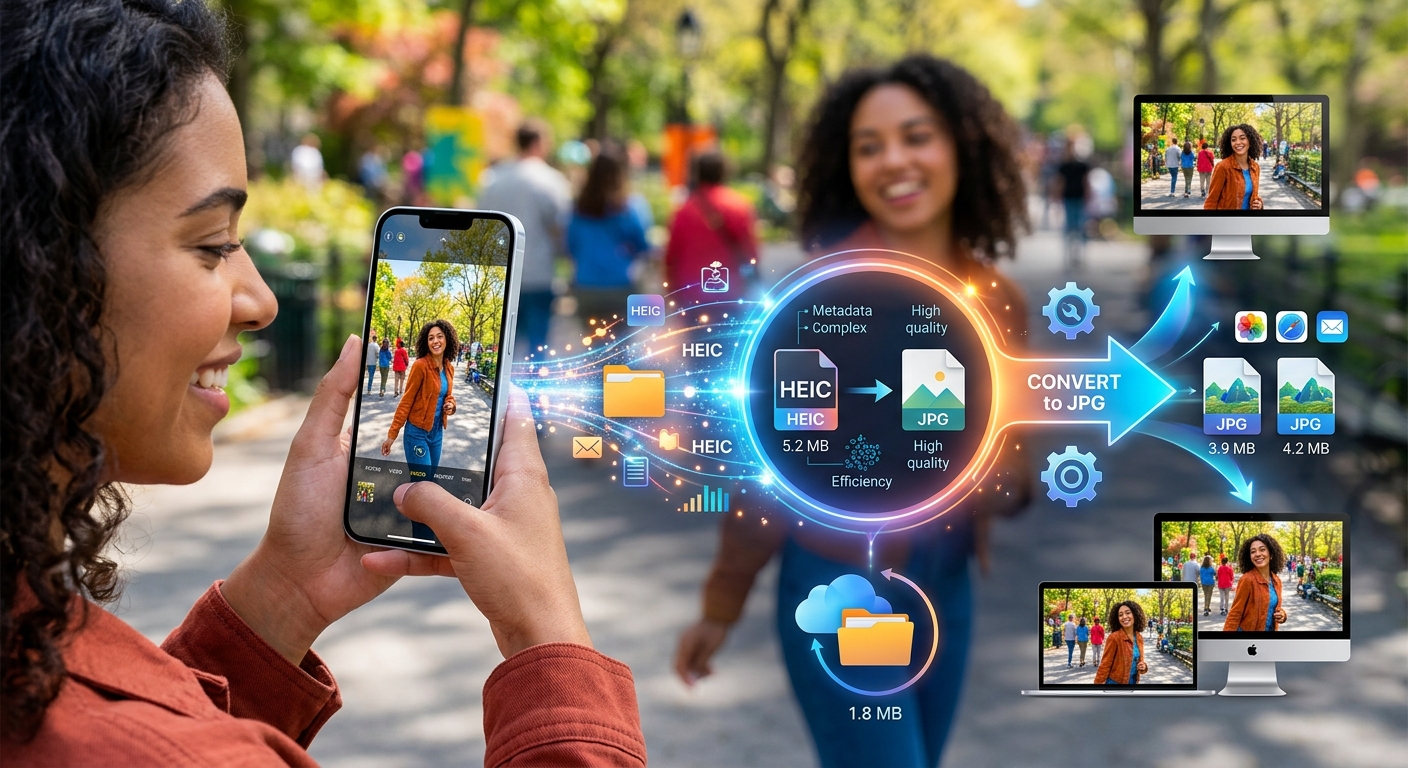
Your iPhone takes a photo. It sits in your camera roll looking perfect. Then you try to attach it to an email, upload it to a government form, or drop it onto a colleague's Windows laptop, and nothing works. The file gets rejected, opens blank, or triggers an error nobody can explain. That file is almost certainly a HEIC, and what feels like a glitch is actually the side effect of a very deliberate engineering choice Apple made in 2017.
What You Need to Know
- Apple switched to HEIC as the default photo format with iOS 11, cutting file sizes roughly in half compared to JPEG at similar visual quality.
- HEIC uses the same compression engine as H.265 video, storing richer data in fewer bytes than JPEG can manage.
- Windows, most web upload forms, and a large share of legacy software treat HEIC as an unknown file type, rejecting or silently failing to open it.
- The right conversion target depends on your destination: JPEG for sharing broadly, PNG for lossless editing, PDF when documents are involved.
- Rather than hunting for separate converters for each format route, checking all HEIC tools in one place saves significant time.
Why Apple Replaced JPEG in the First Place
JPEG has been around since 1992. It served the photography world faithfully for decades, and it still works on virtually every device. The problem is that it was built for a world of 8-megapixel cameras and spinning hard drives. A modern iPhone shoots 48-megapixel images, records HDR depth data, and stores Live Photo sequences, all of which need to fit on a device with a fixed storage ceiling. JPEG was simply not designed for that workload.
Apple introduced HEIC as the default capture format starting with iOS 11 in 2017. The change applied to the iPhone 7 and newer devices, which covered most of the active iPhone fleet at the time. The format itself is based on an open standard called HEIF (High Efficiency Image File Format), developed by the Moving Picture Experts Group. Apple published format compatibility documentation alongside the launch, outlining which devices could capture in HEIC and how files would behave when shared outside the Apple ecosystem.
The compression advantage is the headline benefit. A HEIC photo takes up roughly half the storage of the same image saved as JPEG, often with no visible quality difference at typical viewing sizes. For Apple, the math was straightforward: users could take twice as many photos before filling their phones, iCloud backups shrank, and uploads moved faster. The trade-off, which Apple did not advertise with particular loudness, was that the rest of the world had not caught up.
How HEIC Fits More Data into Smaller Files
The compression gap between HEIC and JPEG is not just a matter of cranking up a quality slider. The two formats use fundamentally different strategies to encode image data, and that difference matters more than people realize.
JPEG works by splitting an image into small 8x8 pixel blocks, transforming each block into frequency data, and discarding the parts that human eyes are least likely to notice. It is a clever system for its era. The limitation is that those rigid little blocks create visible artifacts at high compression ratios, the blurry, blocky look that appears when a JPEG has been squeezed too hard.
HEIC borrows its approach from modern video codecs, specifically H.265 (HEVC). Instead of treating every block independently, the codec predicts what each region of the image should look like based on surrounding areas, then stores only the difference between that prediction and reality. Large areas of similar color, a clear sky, a white wall, a clean background, can be represented with very little data. The compression adapts to image content rather than applying the same blunt grid across everything.
Beyond compression efficiency, HEIC functions as a richer container format. A single HEIC file can store multiple image frames (this is how iPhone Live Photos work), depth maps from Portrait Mode, wide color data for HDR displays, and up to 16 bits of color per channel. JPEG tops out at 8 bits per channel. This means HEIC is not just a smaller JPEG. It is a more capable format carrying information that JPEG cannot hold at all.
Where HEIC Breaks Down in Everyday Life
The engineering case for HEIC is solid. The adoption story is considerably messier, and that gap between the format's quality and its compatibility causes real friction for real people.
Windows is the most common pain point. Neither Windows 10 nor Windows 11 supports HEIC natively without installing an additional codec. Dropping a HEIC file onto a Windows machine often produces a generic document icon rather than a thumbnail. Trying to open it in the default Photos app triggers a prompt to install the HEIF Image Extensions from the Microsoft Store. It is not expensive, but most users have no idea the codec is required, and on managed corporate machines, installing store apps may not be permitted.
Web platforms add a separate layer of friction. Many file upload forms validate uploads by checking the extension or MIME type against a list of accepted formats. HEIC is absent from that list for a substantial portion of the web. Government portals, e-commerce product image upload tools, email attachment systems with file type restrictions, and academic submission platforms frequently reject HEIC, sometimes with a clear error message and sometimes with no feedback at all. The file just disappears.
Older desktop software compounds things further. Adobe Photoshop versions before 2019 cannot open HEIC. GIMP handled the format inconsistently for years. Microsoft Office applications that accept embedded images may choke on HEIC without explaining why. Print labs, particularly smaller local services, often require JPEG explicitly and will reject anything else.
The silent failure cases are the most disorienting. Some software opens a HEIC file and renders a blank or corrupted preview with no error message. The user assumes the photo is damaged. It is not. The file is perfectly intact. The application simply does not speak HEIC, and it has no graceful way to say so.
How Android and the Open Web Handle HEIC
Android support for HEIC is inconsistent in its own way. Google added HEIC decoding to Android from version 9 (Pie) onward, so modern Android devices can open HEIC files received from an iPhone. Older devices still in active use cannot. This makes HEIC unreliable for casual photo sharing between people on different platforms, because you cannot always know what Android version the recipient is running, and there is no useful error to guide them when things fail.
Browser-based applications generally assume JPEG or PNG. Even services that technically accept HEIC often convert it silently before processing, which can introduce unexpected quality changes the user never requested. Web developers building upload workflows still treat JPEG as the universal baseline, and that is unlikely to shift until HEIC support is consistent across every major browser and server-side image processing library.
Choosing the Right Target Format Before You Convert
The format you convert to should follow from what you plan to do with the file. There is no single correct answer, but there is a logic to it.
JPEG is the right choice when sharing is the goal. It works on every platform, every operating system, and every device made in the past three decades. File sizes stay manageable for email and messaging apps. Social media platforms accept JPEG without complaint. The limitation is that JPEG uses lossy compression, meaning some image data is permanently discarded during conversion. For photos viewed on a screen at normal sizes, that trade-off is almost always invisible and entirely acceptable.
PNG makes sense when editing is the destination. PNG is a lossless format, meaning every pixel is preserved exactly. If you are taking a HEIC photo into a graphic design tool, doing detailed retouching, or need to preserve transparency (PNG supports alpha channels, JPEG does not), PNG is the better target. Files run larger than JPEG, but the image survives multiple rounds of editing without accumulating compression artifacts.
PDF enters the picture when the destination is a document workflow. Legal filings, academic submissions, HR form uploads, and many institutional portals require PDF. Converting a HEIC photo to PDF embeds it in a container that nearly every institution, operating system, and device can open, print, and archive without installing anything extra. The image content is preserved inside a universally readable wrapper.
The decision tree branches further from there. WebP suits web publishing where page load speed matters. TIFF serves print production workflows where maximum fidelity is non-negotiable. Knowing all the branches before you start a conversion prevents the frustration of picking a format and discovering the destination does not accept it.
Format Routes by Destination
| Destination | Best Format | Why It Works |
|---|---|---|
| Email or messaging apps | JPEG | Universal support, compact file size |
| Photo editing software | PNG | Lossless, no quality loss through edits |
| Document or form submission | Accepted by virtually every institution | |
| Website image upload | JPEG or WebP | Broad browser support, fast load times |
| Print production | TIFF | Lossless, high resolution for press output |
Adjusting Your iPhone Before the Problem Starts
You do not have to convert everything. If most of your photo sharing happens through iMessage to other iPhone users, or you only ever view photos on your own Apple devices, HEIC causes no problems at all. The format works beautifully within the Apple ecosystem, and the storage savings are real and compound over months of active use.
For users who regularly share outside the Apple world, there is a setting worth knowing about. Under Settings, Camera, Formats on any iPhone running iOS 11 or later, switching to "Most Compatible" mode captures new photos as JPEG instead of HEIC. Existing files in your library stay as HEIC, but future shots avoid the conversion step entirely before sharing.
For an existing library, batch conversion is far more practical than handling files one at a time. Years of HEIC photos accumulate quickly, and converting them individually is not a reasonable use of anyone's time. A tool that processes entire folders at once handles the bulk efficiently, and keeping the originals until you have confirmed the converted files look right gives you a safety net before clearing space.
The Gap Between Your Phone and Everyone Else's Software
HEIC is not a bad format. It is genuinely better than JPEG at the job it was designed to do, which is storing high-quality images efficiently on storage-constrained devices. The friction it creates is not a flaw in the format itself. It is the natural gap between one company's adoption timeline and the broader software ecosystem's pace of catching up.
That gap is narrowing. More software supports HEIC today than it did five years ago. More platforms accept it on upload. As HEVC hardware decoding became standard across chipsets from multiple manufacturers, the processing cost that once made HEIC expensive to decode largely disappeared. The trajectory points toward broad compatibility eventually.
For now, though, the gap still catches people off guard often enough that knowing when and how to convert is a genuinely practical skill. Not because something is broken, and not because the format is wrong, but because the tools you use and the people you share with live in a world that has not yet fully standardized around it. Understanding that gap is the first step. Having a clear conversion path for each situation is the next one.