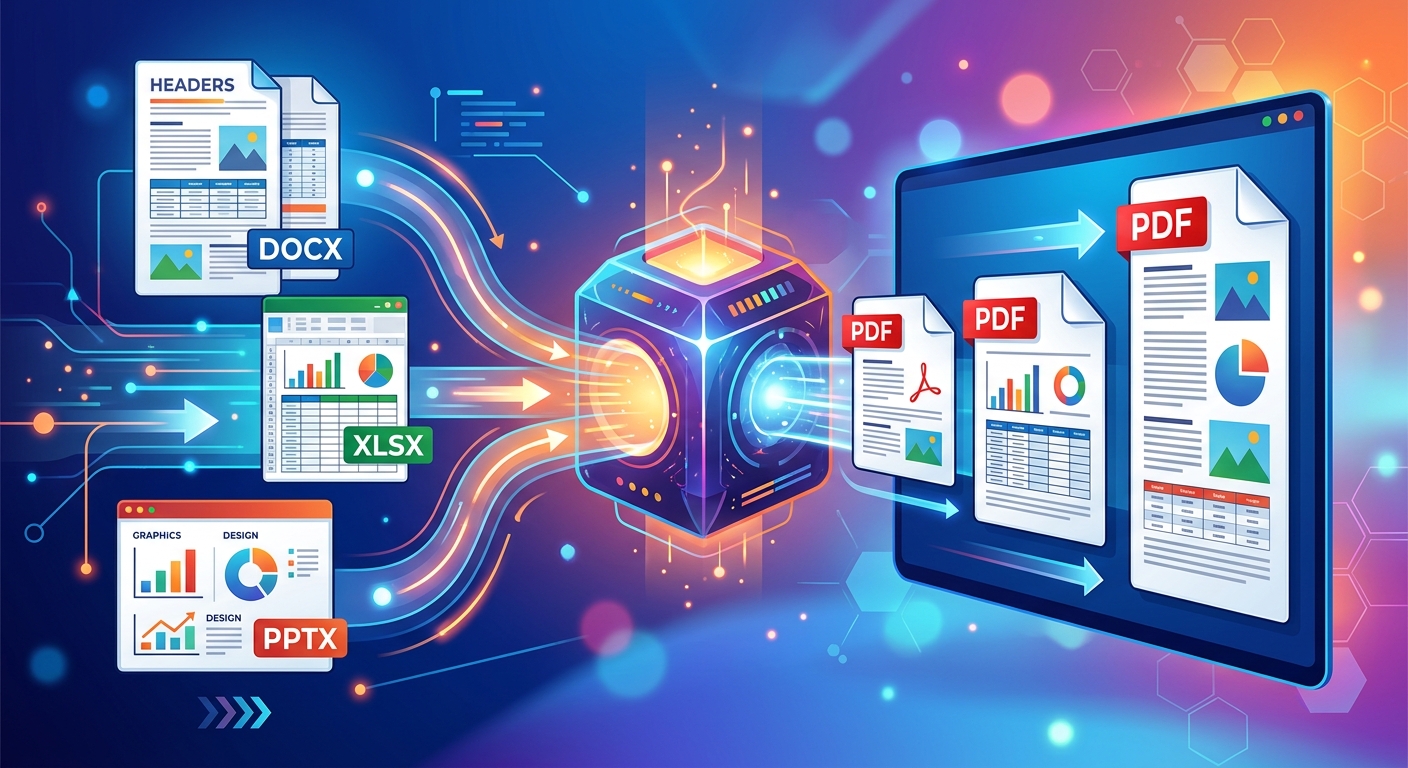
You spend an hour getting a document exactly right. The fonts match your style. The images are crisp. The columns line up. Then you export to PDF, send it off, and the recipient opens something that looks nothing like what you built. Spacing is off. A heading has changed to a generic font. An image looks soft. This happens more often than people expect, and the reason is almost never the tool itself. It is what the conversion process does to your file beneath the surface that catches people off guard, and that part rarely gets explained.
Before You Convert: Three Things to Know
- Fonts not embedded inside the PDF will be replaced by whatever font the reader's device chooses, changing the document's entire appearance.
- Images are often recompressed during conversion, which can reduce their sharpness depending on the tool's settings.
- Layouts built for scrolling, like spreadsheets, do not map cleanly onto fixed PDF page dimensions without some advance preparation.
What a PDF Actually Does to Your Original File
A PDF is not a live document. It is a fixed snapshot. When you create one from a Word file or a spreadsheet, the software takes everything visible on your screen and translates it into a format designed to look identical on any device, regardless of what software or fonts that device has installed. That fixed, device-independent rendering is the core purpose of the format.
The word "translate" carries a lot of weight here. A Word document describes text using font names, sizes, and style rules. A spreadsheet stores data in cells with formulas and formatting logic. A JPEG or PNG is a grid of colored pixels. A PDF takes all of those descriptions and locks them into a coordinate-based page layout with fixed positions. What gets preserved in that process, and what gets lost, depends on how the conversion handles three things: fonts, images, and layout.
The Font Embedding Problem Explained Simply
Fonts are the most common reason a converted PDF looks wrong. Most source documents, like a Word DOCX file, store only the name of the font you used. They do not store the font itself. When you open the document in Word, your software finds that font on your computer and renders the text correctly. The font lives on your machine, not inside the file.
A PDF can work the same way, referencing a font by name without including the actual font data. If the reader's device does not have that font installed, it substitutes one. That substitute may look similar, but it is rarely identical. Letter spacing shifts. Line breaks fall in different places. Headings that were carefully sized start looking out of proportion relative to the body text.
The fix is font embedding. A well-converted PDF includes the actual font data inside the file, making it entirely self-contained. Any device that opens it will render the text exactly as you intended. This is also a formal requirement in PDF/A, the archival variant of the format. Without embedded fonts, a file cannot comply with archival PDF requirements, because there is no guarantee the correct fonts will exist on a reading device years or decades from now.
If you are using a licensed or downloaded font that cannot be embedded, your conversion tool may warn you, or it may substitute the font silently. Specialty fonts and narrow corporate typefaces are the most likely to cause this problem without any visible warning during the conversion step.
How Images Get Treated During Conversion
Images in a PDF can either pass through unchanged or be recompressed. What happens depends entirely on the tool and its settings. Raster images, such as JPEGs and PNGs, are pixel grids. When they enter a PDF, the converter has a choice: preserve those pixels exactly, or apply compression to reduce file size.
JPEG images are already compressed using a lossy method that removes some detail to shrink the file. If a conversion tool recompresses a JPEG inside the PDF, you are putting it through lossy compression a second time. Each pass removes more detail. A photo that looked clean in your original document can come out with soft edges and faint blocky patterns around fine details after a second compression round.
PNG images use lossless compression, meaning no detail is discarded during storage. But a converter can still choose to recompress a PNG as a JPEG inside the PDF to save space. If this happens automatically, an image that was perfectly sharp in PNG format can look noticeably softer in the final file, with no warning from the tool.
Resolution matters as well. If your source image is 72 pixels per inch and the document is going to print, the result will look pixelated on paper. A PDF does not improve image quality. It preserves what you give it. High-resolution sources at 150 to 300 pixels per inch will hold up well through conversion. Low-resolution sources will look exactly as soft in the PDF as they do in the original.
Spreadsheets and the Page-Size Mismatch
Spreadsheets create some of the most predictable conversion problems, because spreadsheets are not built around pages. A spreadsheet can extend as far right or as far down as the data demands, with no concept of a page edge. A PDF is built entirely around fixed pages. When you convert a spreadsheet, the tool must decide where to cut the data and start a new page, and it will make that decision based on defaults you may never have looked at.
Why Print Area Setup Changes Everything
Most spreadsheet applications let you define a print area before exporting to PDF. This tells the tool exactly which cells to include and how to scale them onto the page. If you skip this step, the converter guesses. It might cut off columns mid-table. It might scale the content down so far that numbers become hard to read. It might spread a compact dataset across four pages when one would suffice.
Taking two or three minutes to set your column widths deliberately, define the print area, and preview the page layout in your spreadsheet application before converting will prevent nearly every spreadsheet-to-PDF layout problem before it happens.
What Each File Type Faces in the Conversion Process
How Common File Types Hold Up as PDFs
| Source File Type | Primary Conversion Risk | What to Check First |
|---|---|---|
| Word document (DOCX) | Font substitution, line spacing changes | Use standard fonts or confirm embedding is enabled |
| Excel spreadsheet (XLSX) | Columns cut off, data split across pages | Define print area and preview the page layout first |
| JPEG image | Double compression causing softness or artifacts | Start with the highest quality source file available |
| PNG image | Silent conversion to JPEG compression inside the PDF | Check whether the tool offers image format settings |
| PowerPoint (PPTX) | Font changes on slides, animations and transitions lost | Embed fonts and rely on safe standard fonts for slide text |
Choosing a Browser-Based Tool That Respects Your File
Applications like Microsoft Word and LibreOffice can export to PDF directly, and they generally handle it well because they built the file and understand its structure completely. Their built-in export handles font embedding automatically and usually gives you meaningful options for image quality and output resolution.
Not everyone has those applications installed, and not every file type has a native exporter. For one-off conversions, browser-based tools are a practical option because they require no installation and work on any device with a browser. If you want to test how your own files behave after conversion, a PDF converter you can open directly in your browser lets you run a conversion right away and compare the output to your source, without committing to any software download.
When evaluating any conversion tool, browser-based or otherwise, look for settings that control image quality or output resolution, and check whether it mentions font handling. A tool that offers no control over these settings is making those decisions for you, and the defaults may not match what your specific document needs.
Steps to Prepare Your File Before Converting
- Use standard, widely available fonts for text where appearance matters most. Arial, Georgia, Times New Roman, and Calibri are broadly installed and unlikely to cause substitution problems on any device.
- Source your images at the right resolution. Aim for at least 150 pixels per inch for screen-only PDFs and 300 pixels per inch for anything intended to be printed.
- Match your page dimensions to the expected output. If your document is designed for A4 but the converter defaults to US Letter, margins will shift and text may reflow into unexpected breaks.
- Set the print area in any spreadsheet before starting the conversion. This removes guesswork from the tool and gives you direct control over which data appears and how columns fit the page.
- Run a test conversion before the final send. Open the output PDF in a different viewer or on a different device than the one you used to convert it, because what looks correct in one reader can look broken in another.
Signs Your PDF Did Not Come Out Right
After conversion, a few specific things will tell you immediately whether something went wrong. Check for these before sending the file to anyone:
- Body text or headings appear in a different font than the original, or in a generic typeface you did not choose
- Images look noticeably softer than they did in the source document, or show faint blocky patterns around fine details
- Tables or columns are cut off at the right edge of the page, with data missing entirely from that side
- Line spacing or paragraph spacing has changed, making text feel more crowded or more spread out than you intended
- The total file size is unexpectedly small, which can signal that aggressive automatic image compression was applied without your knowledge
What Your Recipient Sees Is Fixed the Moment You Send
A PDF does not update once it leaves your hands. A Word document can be reopened and corrected in seconds. A PDF that went out with the wrong font or a clipped table requires a full reconversion and a new send. That permanence is genuinely one of the format's strengths. It is also what makes getting the conversion right the first time worth a few minutes of advance attention.
The most common problems are entirely predictable. Font substitution happens when fonts are not embedded. Image softness happens when compression runs without limits. Spreadsheet clipping happens when no print area is defined. None of these failures are mysterious or random. Each has a clear cause and a clear fix you can apply before you ever click convert. The more accurately you picture what conversion is doing to your file, the fewer surprises are waiting for the person who opens it on the other end.
Put this into practice with Word to PDF conversion, spreadsheets exported to PDF or photos combined into a PDF. If the result is too large, read how to shrink a PDF without making it unreadable, and for the reverse direction see what converts cleanly from PDF to Word.